The world is full of smartphones these days. Most people rely on their smartphones and other portable devices to carry out their day to day activities. It won’t be an exaggeration to say that smartphones have taken over laptops in terms of productivity. Thus, it becomes extremely important to know about the (ethical)hacking toolsavailable on your android phone. Who knows, you might need them one day!
Hacking, nowadays, is not something which is the exclusive domain of the “experts”. With the help of a few applications and basic knowledge of the true capabilities of your android phone, you, too, could delve into the world of hacking. So, let’s discuss some of the apps for your android phones which will turn you into a hacker!
1. ANDRORAT
AndroRatstands for Android Remote Administration Tool. As the name suggests, it is a remote administration tool which is used to control another device even if you have no physical access to that device! Manipulating other devices can be easily done using the app which is quite useful in case you’re away from your device and need it to perform some task. It is also useful in inducing some giggle and amazement amongst your friends and family members!
2. DROIDSHEEP
The word “hacking” for many is hacking into your friend’s social media account for giggles. Or it may be used for even something useful like extracting some important information from someone’s social media accounts.DroidSheepdoes the job for you. It hijacks the sessions of social media activities carried out on your network. You need the knowledge of the basics of hijacking and by installing the app on your android device you’re all set to ‘hack’ your friend’s online social life!
3. KILL WIFI
This open source ethical hacking app is one of the most popular ones in this field. Similar to the net cut app in Windows, this app is capable of cutting off anyone’s WiFi over your network.Kill Wifiis extremely useful when you have an open WiFi not protected by a strong password. You can cut off the WiFi of the intruder by just a few clicks on your device. This app is easy to use owing to its lucid and interactive interface and easy-to-use tools.
4. SPOOFAPP
Won’t it be wonderful if you could place a call to your friend phone, but instead of showing your phone number different number flashes on your friend’s phone?SpoofAppis exactly what this app does. Apart from changing your phone number, this app can also change your voice and record your entire conversation! However, you will need SpoofCards to use this app. Overall a nice app for bringing smiles on your and your friend’s face.
5. WIFI MAC CHANGER
One of the most useful ones,Wifi Mac Changerapp changes the MAC address of your device you make your activities almost untraceable. With your rooted android phone, you can change the MAC Address of your device temporarily so that your online activities cannot be traced back to you. The app provides you two methods of changing your MAC Address. One is the easier way which reflects no change in your WiFi settings. The other method is a bit tougher which allows you to enter apps which are password protected and this will reflect the changed address in your WiFi settings.
CONCLUSION
These apps may not seem very productive at a first glance but with prolonged use, you will certainly realize the potential that these apps possess. Who knows someday you may need to spy upon your friend’s/significant other’s social media account? Or you may need to kick off an intruder from your network. Thus, gear up for the path untraveled and watch your world in an entirely different light using these apps!
How To Get WiFi Password of your Friends without Rooting 2017
Welcome to Android tips and tricks very much friends today in my this article I am going to teach you how to Hack Wi-Fi Password By Android Without ROOT [Latest Way] 2016, Yes now you can hack Wi-Fi password easily and without root. Friends today the method we are going to use is not very hard OR you do not need to follow to much steps you can use some apps which are available on Google Play Store for free and are able to hack Wi-Fi- password easily in just one minute.
First of all you have to download Wi-Fi WPS WPA TESTER from Google Play Store
This app can hack only WPS & WPA routers. It cannot Hack WPA2 Router to hack password. and it only support Latest Version of Android, Android 5.O or later then it so your android must be updated.
1. Install the Wi-Fi WPS WPA TESTER from Google Play Store and open the app. Also Read: Best Hacking Apps for Android Phones 2016
2. Click onto the Refresh button it will show your available networks.
3. If it shows a red icon after network name then it cannot hack it and if it show green icon then it can hack the password.
4. Select the Green network.
5. Now click on connect automatic pin it will try to connect to network with its designed algorithm, and will take maximum 1 minute to show you the results.
If you do not get success with this method I mean app then there is a second app which is more powerful than this one and can also try to hack WPS protected networks.
After the battery is disconnected you may use your hands to pull out the battery. It may be a little difficult because there is adhesive on the backside of the battery.
Download the necessary programs.You will need 2 programs to make this hack work: CommView (which will be used to look for vulnerabilities in the network you’re trying to access[4]) and AirCrackNG (which will break the security key itself)
Make sure your computer’s wireless adaptoris compatiblewith CommView.
2
Find a Network.Use CommView to scan for wireless networks. Choose a network with a WEP key and a decent signal.
3
Filter the search to that network.Right click on the network you want to access, select “Copy MAC address”, go to the Rules tab, then MAC Addresses, enable MAC address rules, then click Action→Capture→Add Record→Both. Paste in the MAC address.
4
View Data packets.Sort out the Management (M) and Control (C ) packets so that you are only viewing the Data (D) packets.
5
Save the packets.Go to the Logging tab and enable auto saving. You may need to change the settings on the Directory size and File size. Try 2000 and 20, respectively.
6
Press the “Play” button to begin collecting.Wait until you have at least 100,000 packets.
7
Click “Concatenate Logs” under the Log tab.Make sure all of the logs are selected.
8
Export the logs.Go to the folder where the logs were saved and open the log file. Click File→Export→WireShark/tcpdump format and save it where you can find it easily.
9
Open the newly created file with Air crack.Start Aircrack and choose WEP. Open the file and click “Launch”.
10
Enter the index number.When the command prompt opens, you’ll need to enter the index number for the target network. It is probably 1. Hit enter and wait. If it works, the key will be shown.
Download the program LogMeIn.There is a free version, though you can purchase a subscription if that better meets your needs.[3]
The program will need to be downloaded to the computer you intend to remotely view or use. This makes it useful for gaining access to your computer if it is stolen or for checking up on your teen’s daytime activities during the summer.
You will have to make an account with the LogMeIn website in order to use the software.
2
Log in to the website.Log in to LogMeIn’s website.
3
Navigate to the “My Computers” page.It should open when you sign in.
4
Add the computer you intend to remotely access.You will see an “Add computer” button on the page. Click that and fill in the info for the computer you intend to access.
5
Click the name for the computer once it’s added.
6
Log on to the computer.This means you’ll have to know the username and password for the account you’re trying to access or view.
7
Click “Remote Control”.If you’re trying to be sneaky (such as to spy on the user), try to move the mouse as little as possible and don’t click on anything.
Hacking a computer is a useful and, at rare times, an important skill to pick up. Below are instructions for getting past a password (if you find yourself logged out of a computer or want to check up on your child or spouse), gaining remote access to a computer (to check on a user or help locate a stolen machine), or crack a wifi password (in the event of an emergency, such as if you become lost in an unfamiliar city and you need to look up directions).
Change passwords for any account.This is probably going to be obvious to the user, so you may have to tell them a little white lie. Try something along the lines of: "Oh, I hear computers glitch like that sometimes. Click the button twice. You can always type in recover password if you get locked out and then set a new password" (in which case you will want to set the password to the account to recoverpassword or whatever you tell Nikhil).[2]
Plenty of people have their own website. So how can you join in on the fun, and maybe even make some money while doing it? A free website-making service will allow you to create a website quickly and have it live on the web in just a few minutes.
1.Ask yourself what kind of website you want to have. The needs of your website will dictate what kind of hosting service you should be looking for. If you intend to do business through your website, you’ll need to make sure that the host supports online stores. If you want to create a wiki, there are a variety of free wiki hosts that specialize in creating and maintaining wikis. If you want a blog, blogging sites can get you set up in just a few minutes.
2
Find a free online website-building service. There are a lot of options out there; some great, some poor, some cheap, some expensive; so it's worth spending some time comparing features. Most offer limited services for free sites and typically place advertisements on your site. Your website will most likely also be a subdomain of the host site instead of its own site (e.g. yoursite.host.com instead of yoursite.com). Some of the more popular free hosting sites include:
Wordpress; great for blogs, small to medium-sized websites of all kinds
Compare service features. Each host will offer different services at the free level. Most hosts have a limit on how much data you can upload for your webpage, and this is typically very limited. This means that if you intend to have a media-rich site with images and video, you may not be able to effectively use a free site.
Different free hosts have different policies regarding creating online stores. If you intend to create an e-commerce website, ensure that the service you pick can adequately support your goals.
Most free hosts have low bandwidth limits as well. This means they don’t work very well as file hosts, as downloading files can quickly max your data allowance.
Check to see if the host allows you to upload your own websites. Most free services have web page creation tools and don’t allow you to upload your own custom code. This works for most basic needs, but if you want to be able to create your own site, make sure that the host allows it.
4
Choose a theme that suits you or your business. Browse through the available pre-made themes (sometimes called 'templates' or 'styles'); you can use the software's own available themes, as well as browse theme-selling marketplace websites like Theme Forrest.
Many hosts have specialized designs for their sites that help maintain a brand identity with that host. Find the design that fits your website’s needs the most.
5
Consider how much it will cost you. Even if the service is for free, the business has to make money to provide it to you; it might use adverts, or it might try to entice you to upgrade to get more features, which might come at a significant monthly cost. Whichever one you choose, make sure you know how much it might cost in the future if you decide to upgrade to get more features.
1
Sign up for an account. All free website hosts will require that you create an account. Depending on the service, you may not need to add any billing information unless you plan on upgrading to a paid account.
2
Choose and purchase a suitable available domain name. Free websites typically allow you to create a subdomain on the host’s domain for free, and offer regular domains for a fee. Some free hosts allow you to connect a domain you already own to their free host.
You can buy top-level domain names (www.yoursitename.com) for yearly fees, and the connect that domain name to your free site. Be sure to check that your service allows this. Domain registration companies include GoDaddy, Register.com, Domain.com, Dyn.com, and many more.
3
Design your website. Almost all free website hosts have web site construction programs available through their website. These programs allow you to choose from pre-made themes, and some allow you to customize elements such as CSS.
Web page construction programs allow you to add your text and images with minimal fuss and have a functioning website up in a very short amount of time. Many let you simply drag and drop images into the site. Most require little to no coding experience.
Most free websites provide the tools to create your website online, without the need to download any editing programs. Since you are creating the site through their service, you won’t need to worry about using FTP programs and cPanel to upload content to your site.
Most services offer a variety of tutorials to help get your site up and running as quickly as possible.
If your web host allow it, you can upload your own HTML files to truly create your own custom website. To learn more about HTML coding, check out this guide. If you want to upload your own site, you will need to use an FTP program in order to access the server.
4
Add valuable content. You might need to tell your audience what you do or sell, why you do it (the story behind the business), how to contact you, and so on. Also plan ahead for fresh new content you'd like to add in the future.
5
Publish your site. Once you are happy with the layout and content of your site, it’s time to open up for business! If you have a blog or announcement area, it’s a good idea to create a welcome/introduction post, explaining the purpose of the site and introducing yourself. This will help make readers feel more welcome when they visit the site, and give them a quick breakdown of what the site is for.
1
Continue to create content. Websites that consistently put out new and useful content will get visited much more often than sites that stagnate. Do your best to produce engaging content that brings the reader back for more. Stick to an update schedule so readers can get used to when new content will be available.
The number one way to increase traffic to your site is to consistently create good, engaging, original content. This will drive more viewers your way, and help to retain the viewers you already have.
2
To generate a passive income, place advertising on your site. Check with your host to see if this is allowed, because many free hosts do not support ad revenue going to you when you are using free services. Placing ads on your site can help you monetize it, but may also deter people from reading your content if the ads are too intrusive.
3
Market your site. Once you have a complete website and are adding content on a regular basis, you can start advertising your site. You can pay to have your site advertised on other websites through programs like Google AdSense, or you can promote your site on your own through social media such as Facebook or Twitter.
4
Search engine-optimise (SEO) your website. You can start by submitting your site to search engines. Search engines crawl the web, matching content on websites with users’ searches. To really start attracting large numbers of people to your site, you’ll want to submit it to all the major search engines. The process varies depending on the search engine, but almost all will require you to create a sitemap of your website first.
For Google, you can choose to just submit your site’s URL, or you can submit the entire sitemap for more optimized searches.
For Yahoo! Bing, you can submit just the URL, or submit your sitemap in a variety of different ways. Sitemaps should be in the XML format.
WhatsApp needs no introduction. It's the world's most popular instant messaging service, and we love it. As a show of appreciation for WhatsApp, we've decided to chalk up a list of WhatsApp tips and tricks to help AndroidPIT readers get the most out of it.
1. Stop WhatsApp images appearing in your camera roll
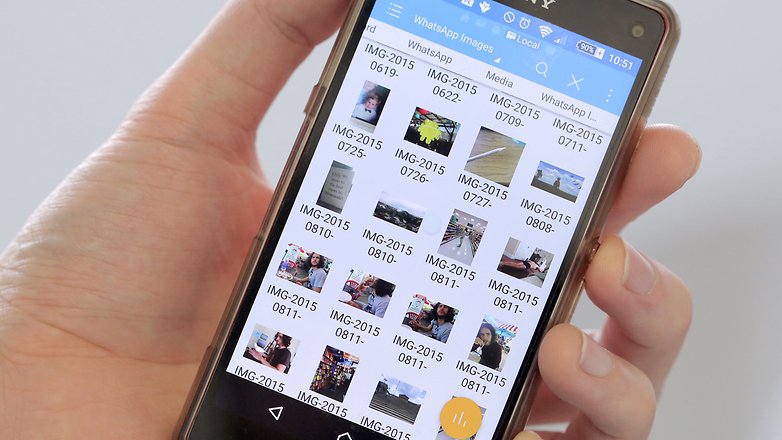
If your friends send you loads of stupid pictures on WhatsApp, and you don't want them mixed in with all your amazing photos, it is possible to keep WhatsApp images separate so they don't appear in your camera roll.
Enter the folder you don't want shared (in this case, WhatsApp Images)
Tap the plus button at the bottom of the screen
Name the new folder .nomedia
That should stop any media in that folder from showing up in your camera roll.
2. Lock WhatsApp
If you're keen to keep your WhatsApp private, you can use any number of security apps to set a passcode for the app. AppLock is a popular choice.
3. Disable media auto-download
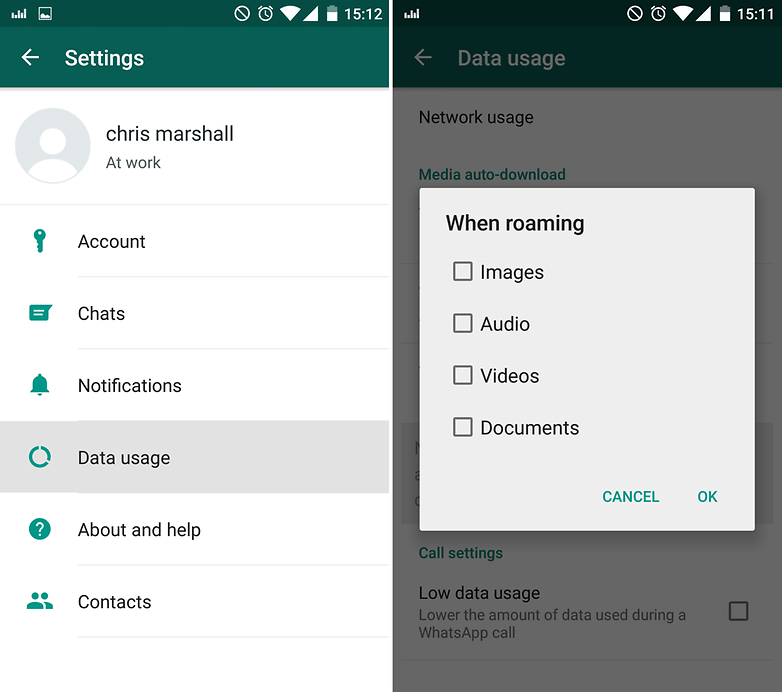
If you're running low on mobile data, it might be worth turning of the automatic download of media in WhatsApp, at least until you hit the monthly reset.
To do this, head to Settings > Data usage. In this menu, ensure you untick the boxes in both When using mobile data and When roaming
4. Switch your WhatsApp chat history between phones
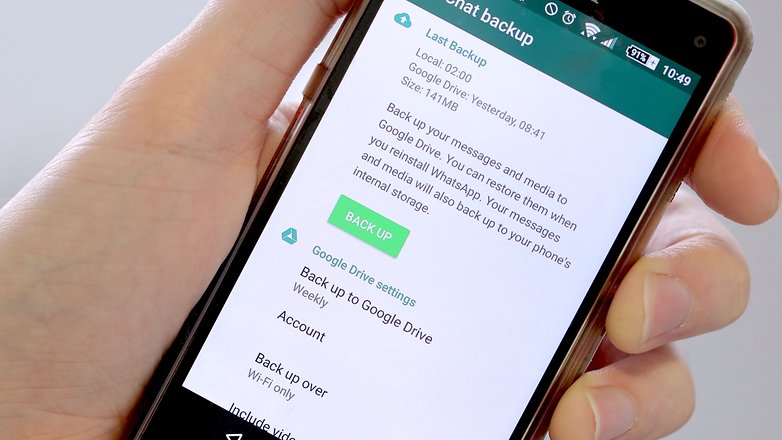
An update that allows Google Drive backups should now have rolled out to all users. This is far and away the easiest method of moving your chat and media history between devices.
However, if for any reason you need to move your WhatsApp history over to a new device without using Google Drive, it's still a pretty painless procedure. All you need is a microSD card and a few minutes to spare.
Insert the microSD card into the device that has WhatsApp on it
In WhatsApp, go to Settings > Chats > Chat backup
Remove the SD card and place it into your other device
Install WhatsApp on the other device
WhatsApp should detect the backup and prompt you to restore it, which you should do
If you need to move the backup, use a file explorer to find '/sdcard/WhatsApp' and move it to the correct folder.
5. How to get WhatsApp on your tablet
If you're looking to get the WhatsApp experience on a larger screen, you can follow our useful guide on how to get WhatsApp on tablet.
6. How to get WhatsApp on your PC
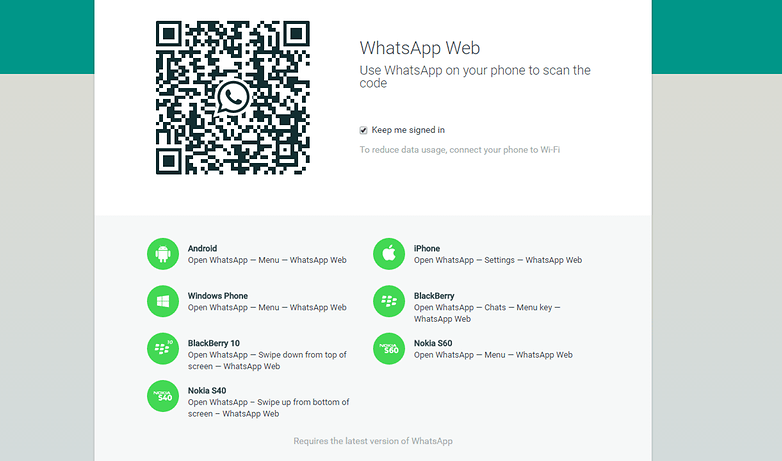
By far the most convenient way to get WhatsApp access on your PC is to simply use the official web client. Open it up, and then you will be prompted to scan a QR code. To do this, open WhatsApp on your smartphone, hit the trio of dots in the upper-right corner, and select WhatsApp Web.
The WhatsApp web client acts as a mirror of your device, meaning you will only receive messages so long as your smartphone is switched on and connected to the internet.
7. Download and install the latest WhatsApp APK
First, head to Settings > Security > Unknown sources and ensure the box is checked.
The, on your smartphone browser either head to the WhatsApp website or APK Mirror and download the latest APK (APK Mirror is usually ahead of the WhatsApp website). Once the file's downloaded, open it to install the latest WhatsApp APK.
8. How to make WhatsApp video calls
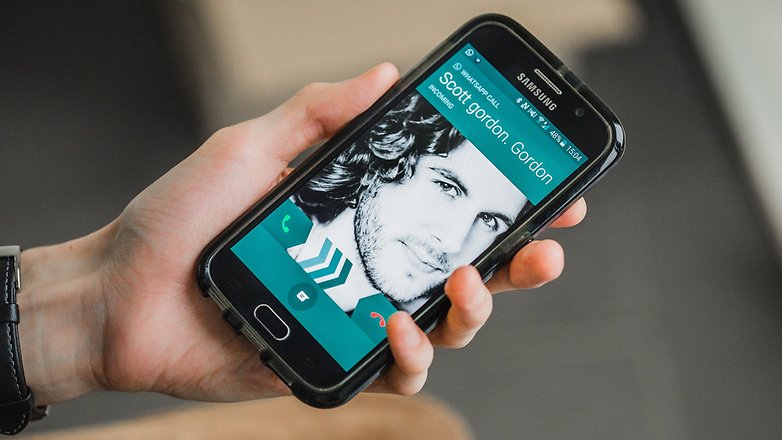
The addition of voice calls to WhatsApp is highly anticipated and looks likely to arrive very, very soon. You can follow our updates on this and alternative solutions you can try in the meantime here:
You can easily use WhatsApp without a SIM card or on two devices at the same time simply by using the web client. But this means you have to remain connected to the internet on your primary device, and connection issues are not uncommon.
The second method is more laborious but also better in the long run.
To do this, both the devices you want to use will need to be rooted. Download and install Titanium Backup root and use it to perform a full backup of WhatsApp, including root permissions. Once this is done, use a file manager to navigate to the folder that Titanium Backup created containing the three files starting with com.whatsapp. Copy this folder onto the internal memory of your second device.
Now, on the second device, where you just copied the files to, download and install WhatsApp. Do not open WhatsApp yet. First, download and install Titanium Backup root again. Open Titanium Backup and grant it root permission. Close the warning and select Backup / restore. Restore using the WhatsApp folder that you copied to the device earlier.
Your second device is now set up with a clone of the original app, so it is already verified. The only downside is that only one of the devices will receive notifications, the one from which you sent the last message.
10. Get desktop notifications for WhatsApp chats
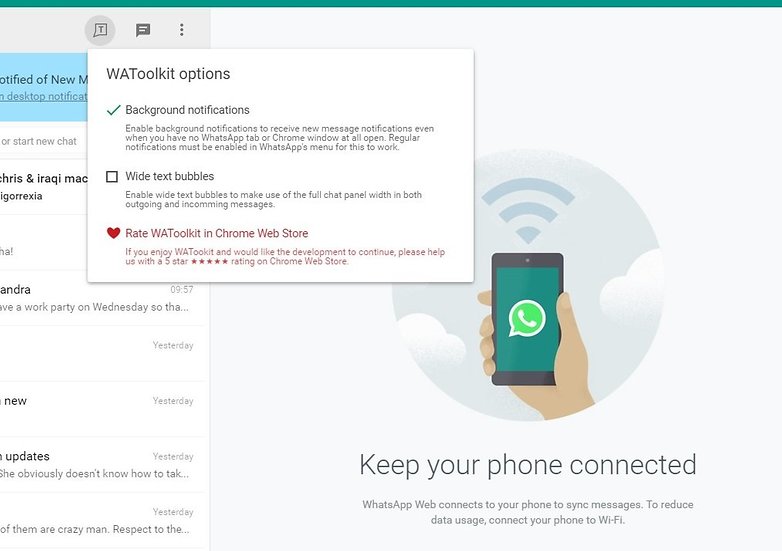
You'll need the WhatsApp Web Chrome extension to get WhatsApp desktop notifications. Then, all you need to do is install a simple add-on called WAToolkit.
After installing it, you will see a new icon in your browser toolbar. Hover your cursor over it to see the most recently received message, or right click for more options. You'll also notice the WAToolkit options button in your WhatsApp Web tab. The best part? WAToolkit will notify you of messages on your desktop even when Chrome itself isn’t running.
Make sure the background notifications box is ticked, like in the image below
11. Recover deleted WhatsApp messages
By default, WhatsApp backs up your messages every day at 4am. This means that if you've deleted any messages since then, but before the next auto-backup, you can recover them. To do this:
Uninstall WhatsApp from your device (Settings > Apps > WhatsApp > Uninstall)
Reinstall WhatsApp.
Type your phone number into WhatsApp, then it should notify you that it's found a backup of your chats
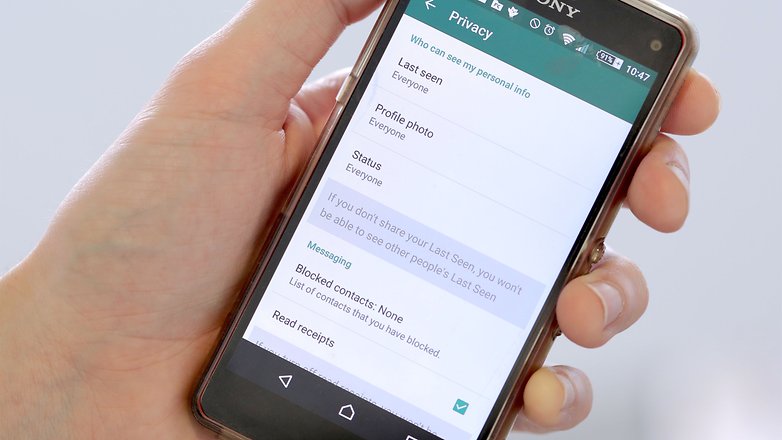
Getting thrown into a big group chat filled with party guests and people you don't know can be bewildering. Suddenly, your profile picture is staring back at a chatroom full of strangers, who can also see your status and when you're reading messages. If I wanted a whole flock of strangers ogling and judging a photo of me, I'd have gone on Tinder.
Here's how to have better control over who sees this information on WhatsApp:
Tap the Options icon at the top right of WhatsApp
Go to Settings > Account > Privacy
Go through the Last seen, Profile photo, and Status options, then set their visibility to 'Everyone', 'My contacts' or 'Nobody', depending on how much privacy you want
13. Know when you've been blocked
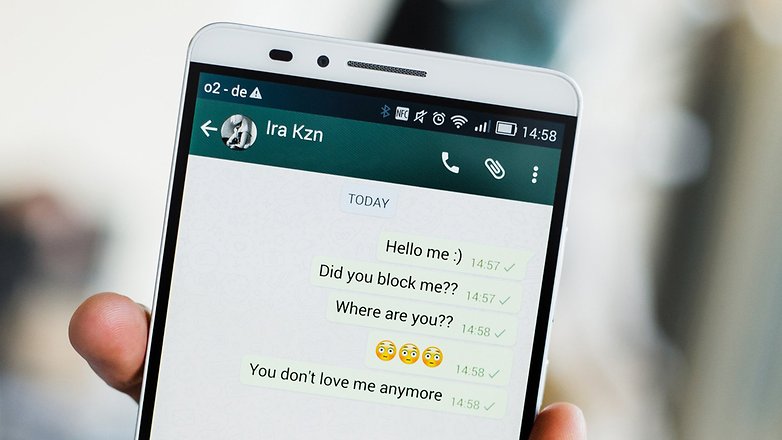
There are four ways to suss out whether someone has blocked you on WhatsApp. Each sign is largely meaningless by itself, but together they form a solid reason to believe that your friend doesn't want to be your friend.
Take note that WhatsApp has deliberately made it difficult to tell whether someone has blocked you or not, in order to maintain users' privacy. There's always an outlying chance that you're just being paranoid, even when all four of the below points apply.
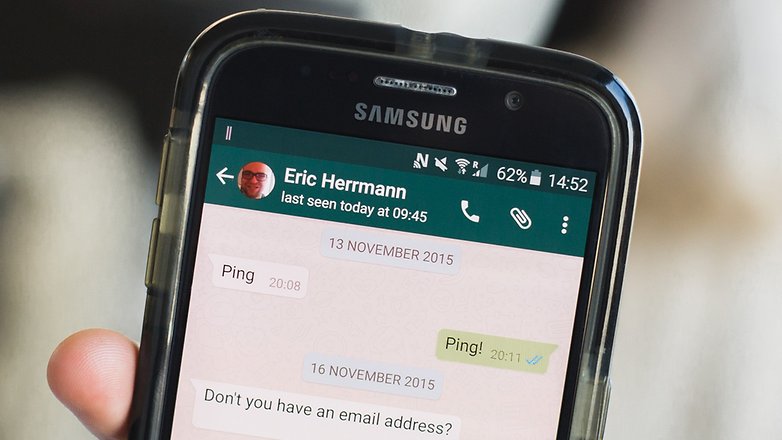
Check the 'last seen' time
A contact's 'last seen' time appears in the top bar right under their name. If there's no information about when they were last online, this could be a bad sign. It doesn't necessarily mean that they've blocked you – it is possible to stop this information appearing without blocking someone. Your friend might just value their privacy, so don't go burning bridges just yet. Read on.
Check the double check
Check marks are WhatsApp's way of compounding your obsessive streak by ensuring that you know what's going on on the other end of the line.
The first check mark means that your message has been sent. When the second one appears, your message has been received by the recipient's phone. This doesn’t mean that the person has read your message, just that it is on their phone; when those check marks turn blue, that's when they have seen the message. If you see the check marks turn blue, they haven't blocked you, and everything is fine. Take a deep breath.
If your messages never get beyond that single, sad gray tick, you might have been blocked.
There's a vague chance they still love you, though, surely? Time to keep digging.
Do your calls go through?
Another indicator that your friend hates you is that all those desperate WhatsApp calls you make never go through.
Again, maybe their phone is broken, maybe they've changed their number, etc, etc, but if this one is true and the two signs above it are, too – well, thing's aren't looking good, are they?
Has their picture or profile changed?
If you notice that a contact hasn’t updated or changed their profile in a while, or they've had the same picture for months, this could mean that they’ve blocked you. Or that they just never update their profile. Maybe everything is fine.
Let's go a step further and check from a different account, meaning from a mutual friend’s smartphone. If you see here that your estranged friend's profile information and picture have changed, then we're sorry to break it you, but your friend has blocked you and, given how strangely you've been acting, with good reason.
Bonus method: Ask them
The final, and ultimate, way of knowing is to ask them. If they say yes, then they have blocked you. If they make up a terrible excuse, they have blocked you. But if the reason why they never respond to you seems plausible and they invite you to hang out, everything is OK. For now.
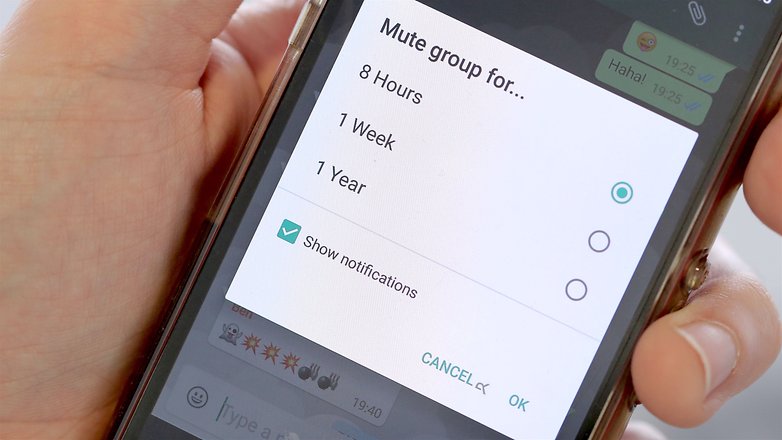
14. Mute annoying WhatsApp group chats
We've all been in that position where we've somehow been dragged into a group chat that we either didn't really want to be in in the first place or just don't want to receive notifications from every couple of minutes.
Rather than just leave the chat, which may offend some people, you can simply mute the chat so you stop receiving notifications from it.
In WhatsApp, tap the Chats tab
Tap the group you want to mute
With the group open, tap the Options icon at the top right
Tap Mute, then select the amount of time you want to mute the group for. You can also untick the Show notifications box so that you never hear from the group again until you decide otherwise
15. Create a home screen shortcut for your favorite chats
Do you have certain friends with whom you have constant stream-of-consciousness conversations, where you're non-stop WhatsApp'ing all day, every day?
If so, then you can create a shortcut icon to those conversations, which will appear on your Android home screen. This means you can jump straight into chats with your BFFs and important groups.
In WhatsApp, tap the Chats tab.
Tap and hold the conversation you want to create a shortcut for.
When the list of options appears, tap Add conversation shortcut
A shortcut displaying your contact's profile picture will now appear on your home screen. Tap it to jump straight in and start chatting to them.
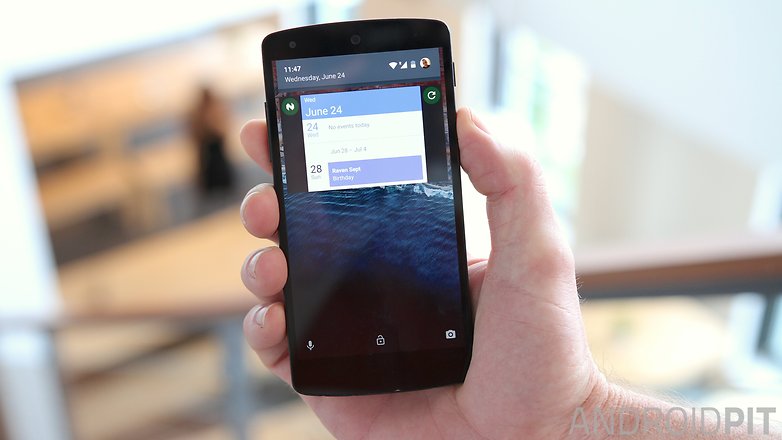
16. Add a widget to your lock screen
WhatsApp widget on stock Android
If your device is running Android 4.2-4.4 KitKat or a custom ROM that supports lock screen widgets, you can quickly and easily add a custom WhatsApp widget to your lock screen.
Unfortunately, Android 5.0 Lollipop killed lock screen widgets and replaced them with heads up notifications that also work on the lock screen.